Windows
Version 1.10, .exe installer
- Fixed an issue when closing the window
Run gsm4ghub-setup-….exe and follow the installer. If Windows shows "Windows protected your PC", click More info and then Run anyway.
XGSMHub is software that controls up to 256 SIMs at once: send bulk text messages, receive OTP codes, make automated calls with recording, check balances and change IMEIs. It runs on a Windows computer or a Raspberry Pi; use it right there on site, open it remotely in a web browser, or connect it to your own software.
| Port | Carrier | Phone number | Signal | Balance | Current task |
|---|---|---|---|---|---|
| 01 | Viettel | 0986 214 507 | 48,500₫ | Ready | |
| 02 | Viettel | 0971 530 118 | 31,000₫ | Sending SMS 18/40 | |
| 03 | Vinaphone | 0912 318 664 | 12,200₫ | OTP received: 482913 | |
| 04 | Mobifone | 0903 775 290 | 65,000₫ | On a call, recording 0:42 | |
| 05 | Viettel | 0868 091 432 | 20,000₫ | Ready | |
| 06 | Vinaphone | 0889 402 173 | 7,300₫ | Checking balance | |
| 07 | Mobifone | 0932 667 815 | 54,000₫ | Ready | |
| 08 | — | — | — | No SIM inserted |
A GSM hub is a box holding several small 4G modems, each with an ordinary phone SIM card in it. Plug the hub into a computer with a USB cable and every SIM becomes a "phone" the computer can control: sending texts, making calls and receiving incoming messages.
XGSMHub is the software that lets you control all of those SIMs at once from a single screen. Instead of picking up phones one by one, you choose a list of numbers and write your message once; the software shares the work out among the SIMs and reports the result line by line.
Everything is done through a simple point-and-click interface, and number lists are imported from Excel files (sample templates included). No programming skills needed.
Receive verification codes sent to your SIMs, extract the code automatically and push it straight to your system via API.
Appointment reminders, order confirmations, payment reminders — each message is filled in with the right name and amount for every recipient.
Call a whole list, play a pre-recorded voice message, record the replies and turn them into text you can read later.
Activate new SIMs in bulk, keep track of balances and expiry dates, and export the list to Excel.
Screenshots taken from the software itself, using sample data. The desktop and web versions look the same, so once you learn one you can use both.
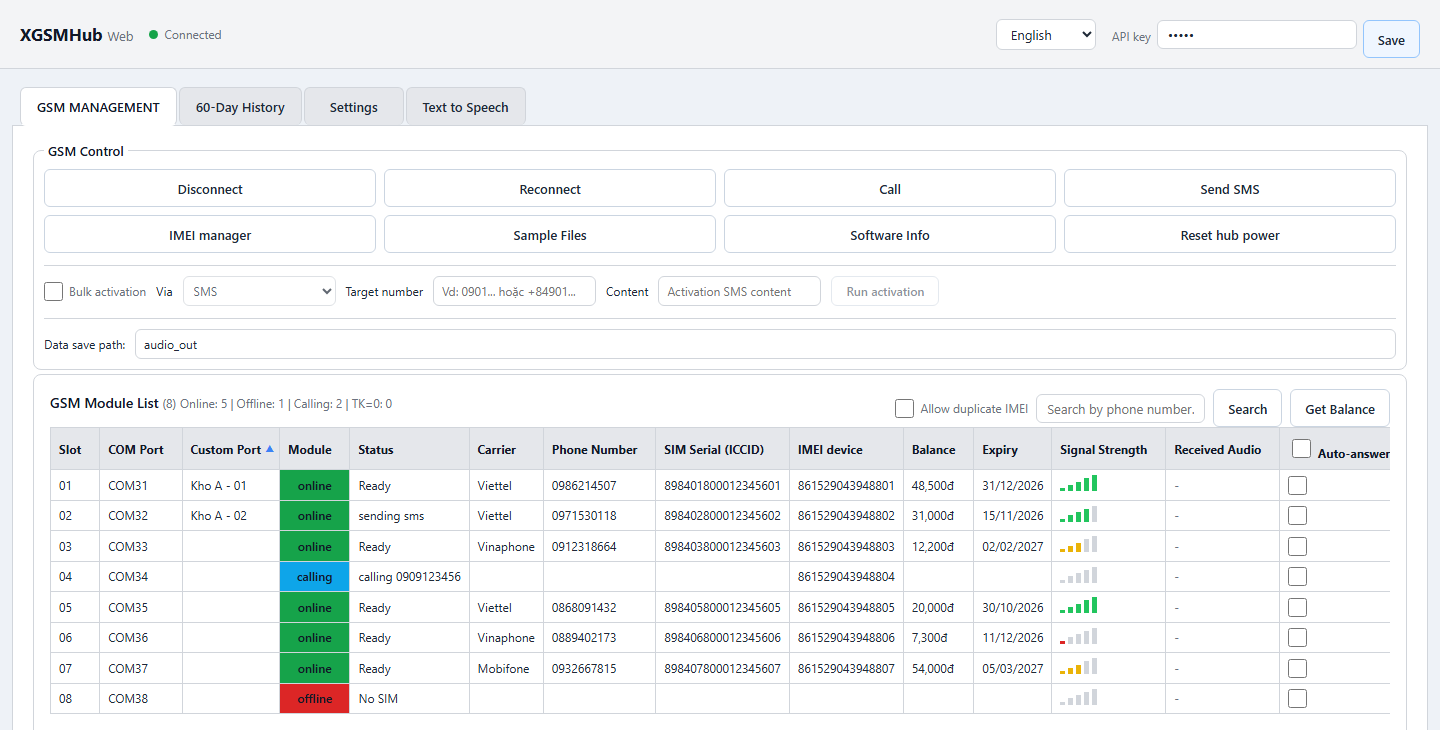
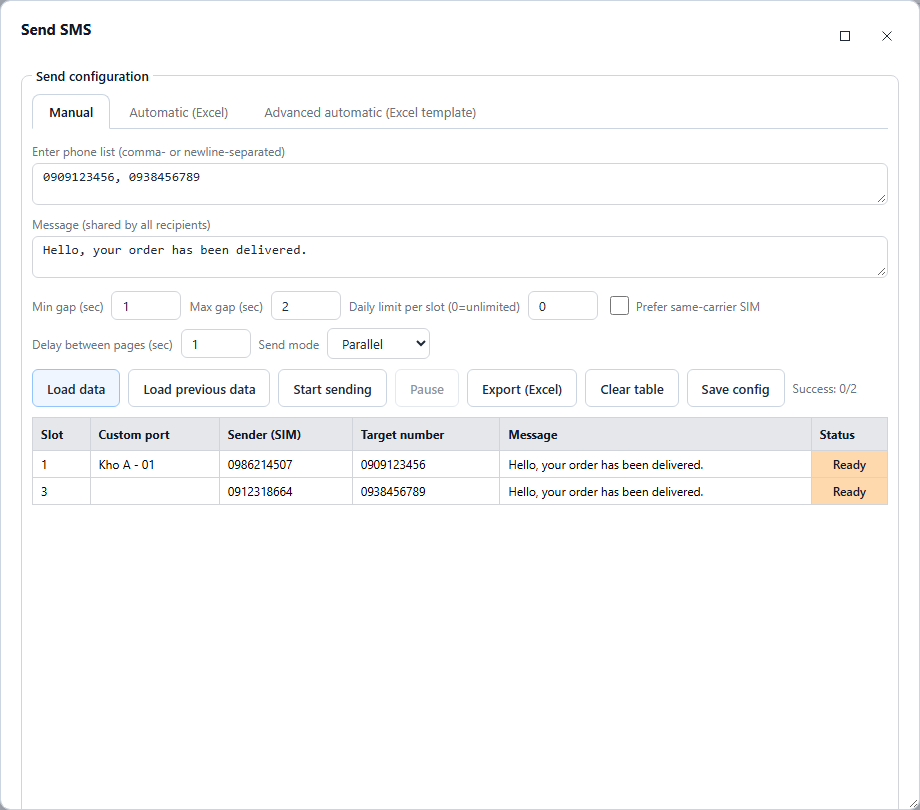
Paste a list of numbers (or pick an Excel file), write your message and click "Start sending". The table below updates line by line: sent, sending or failed.
Everything you need to do with your SIMs is in one piece of software. Technical terms are explained right underneath.
Know exactly how every SIM is doing without picking up a phone to check.
Send hundreds or thousands of messages spread evenly across many SIMs, and receive incoming messages instantly.
Hi [info1], your balance is [info2]₫ — everyone gets their own name and amount. Write {Hi|Hello} and the software picks a greeting at random, so messages aren't identical.Call an entire list without anyone dialing, with recordings you can listen to later.
Type some text and the software reads it out in a natural voice to play during calls.
Get new SIMs ready quickly and keep device details neatly organized.
Look back at everything that was done, without losing track.
At home or on a business trip, monitor and control the hub as if you were sitting next to it.
Let your website, sales software or CRM send messages and make calls on its own — no one needs to click anything.
The latest version is 2.21. A Raspberry Pi updates itself; on Windows, click "Check for updates" in the app, or download the new version and install it over the old one.
Incoming messages are grouped by SIM and by sender, like the Messages app on a phone. New messages show up at once, in the app and on the web.
A notification pops up with a 2-second sound played on a Vietnamese instrument: đàn tranh, đàn bầu, bamboo flute, T'rưng or gongs. A call that arrives while the SIM is busy is reported as missed. Balance replies from 191 and 123 stay quiet.
Hubs in different places? Join the machines on your account into a group and open it on the web as one machine. Messages and calls are spread across the SIMs of the whole group; name each machine so it is easy to spot.
Sub-accounts can top up the SIMs assigned to them. Carrier routing and daily message limits apply across the whole group.
Bulk SMS and call runs show the estimated time left next to "Success x/y". In Sequential mode the gap now falls between rows, and the first row goes out at once.
Admins can click "Update software" on the web to upgrade a machine in another place, with no need to go there.
Wire the hub power through a relay and the Pi cuts and restores power when the whole hub stops answering, with no one there to unplug it. Many-port hubs built on the WCH CH348 chip now work too.
SIM swaps are picked up faster. A port that sends noisy data is set aside so it no longer slows the whole hub. Long messages no longer lose parts. Calls hang up at the length you set, counted from when the other person answers.
No technician needed. If you use a Raspberry Pi, step 2 is done in your browser on the first-time setup page (enter WiFi, activate the license). Using it for the first time? See the beginner's guide to setting up the Pi device and the detailed user guide for every feature, with illustrations.
Insert SIMs into the modems in the hub. The SIMs must still be valid, with credit or a plan if you want to send texts or make calls.
Download XGSMHub and install it on your computer (or Raspberry Pi). The first time you open it, the software shows a "Machine ID" — send this code via Zalo 0968 338 547 (Zalo is a popular Vietnamese messaging app) to receive your license, paste it in and you're done.
Connect the hub with a USB cable. The software detects each modem automatically and reads the carrier, phone number and balance of every SIM.
Select SIMs and start sending messages or making calls right away. To use it remotely, click "Connect to Gateway" in the software.
Choose the operating system of the computer the hub will be plugged into. Click the download button; a Google Drive page opens — click the download icon in the top-right corner. It's always the latest version.
Version 1.10, .exe installer
Run gsm4ghub-setup-….exe and follow the installer. If Windows shows "Windows protected your PC", click More info and then Run anyway.
Version 1.06, .tar.gz package
Extract with tar -xzf gsm4ghub-ubuntu-*.tar.gz, go into the gsm4ghub folder and run bash install.sh once to get an icon in the applications menu, or run ./gsm4ghub directly.
Runs in the background, managed from a browser
The Pi installation package comes with instructions and remote installation support. Message us on Zalo to get the right package for your device.
Get the package via ZaloWhen you open the software for the first time, you'll see a "Machine ID". Send this code via Zalo 0968 338 547 to receive a license and activate it.
It's the same software; changing how you use it doesn't mean buying different software. Start simply on one computer, then later move to a Raspberry Pi running day and night, open it remotely over the web, or connect it to your own systems when you need to. The Raspberry Pi setups will soon run on Orange Pi and mini PCs as well.
A hub usually sits in an office or warehouse, behind an Internet router — it can't be reached directly from outside. Gateway xvooc is an intermediary server on the Internet: the computer running XGSMHub connects out to the Gateway on its own, and you open gateway.xvooc.id.vn in your browser to control it.
That way you don't need a static IP or a technician to open ports on your router. The connection is encrypted (HTTPS) and you log in with your own account. Messages, history and recordings stay stored on your own computer.
Any setup below marked "remote" uses the Gateway.
Hub → PC / Laptop
Plug the hub into a Windows computer, open XGSMHub and work in the most complete interface. No Internet is needed to send texts or make calls (they go over the SIMs' mobile network).
Hub → PC / Laptop → Remote web
Like the option above, plus a Gateway connection. Log in at gateway.xvooc.id.vn from anywhere, even on your phone, and use an interface identical to the desktop one.
Hub → Raspberry Pi → Company intranet web
A Raspberry Pi is a palm-sized computer that uses very little power and runs day and night without a screen. Staff in the office open a browser, type the Pi's address (for example http://192.168.1.50:8000) and start working.
Hub → Raspberry Pi → Remote web
As compact and economical as the option above, plus a Gateway connection so you can open it from anywhere. Put the Pi and hub in a warehouse or branch, and manage it from your office or your phone.
Hub → Raspberry Pi → REST API ← called by your web app
Your website, sales software or app gives XGSMHub instructions on its own: send messages, make calls, check balances, and receive incoming messages / OTPs instantly. Nobody needs to sit and click. Software outside the company network calls it through the Gateway.
| Setup | Software runs on | Remote access | Multiple users | Connect other software | 24/7, low power |
|---|---|---|---|---|---|
| On a computer | PC / laptop | No | At the computer | Optional | No |
| Computer + remote web | PC / laptop | Yes | Yes | Optional | No |
| Pi + intranet web | Raspberry Pi | Within the company | Yes | Optional | Yes |
| Pi + remote web | Raspberry Pi | Yes | Yes | Optional | Yes |
| Pi as API server | Raspberry Pi | Via the Gateway | Yes | Yes, that's the whole point | Yes |
Prices are per computer running XGSMHub (a PC or a Raspberry Pi) — each license is tied to that computer's "Machine ID".
Full use of the software right on your computer: bulk messaging, OTP reception, automated calls with recording, balance checks and IMEI changes.
Open the web dashboard through the Gateway to monitor and control your hub from anywhere, on a computer or a phone.
The two plans are sold separately; you don't have to buy both. To buy a plan, send the "Machine ID" shown in the software via Zalo 0968 338 547 or call 0968 338 547. Prices are in Vietnamese dong (₫).
Click a question to see the answer.
A GSM/4G modem hub (using Quectel EC20 / EC25, SIMCom SIM7600 / SIM800 or M26 modems), active SIM cards, a Windows computer or a Raspberry Pi 3 or later (Orange Pi and mini PC support coming soon), and an XGSMHub license.
Yes. They're ordinary phone SIMs from Viettel, Vinaphone, Mobifone and others. The SIMs must still be valid; to send texts or make calls, they need credit or a plan, just as when used in a phone.
Texts and calls go over the SIMs' mobile network, so no Internet is needed. You only need Internet to use the remote web interface through the Gateway, or to create text-to-speech voice files (the voice service runs online).
Yes. Each task is a single button, and number lists are imported from Excel with ready-made templates. The REST API is only for developers if you want to connect other software — if you don't need it, just ignore it.
A regular Windows office computer is enough. A Raspberry Pi 3 handles messaging, calls and the web interface well; only the speech-to-text feature is fairly demanding and runs much faster on a PC. If you plug many modems into a Pi, use a USB hub with its own power supply.
Messages, history and recordings are stored on the very computer that runs your software. When used remotely, the connection through the Gateway is encrypted (HTTPS) and requires logging in with your own account. You can disable any user's account or revoke an API token at any time.
Yes. Several people can open the web dashboard at once. You create a separate login for each staff member and can disable it immediately when someone leaves.
A SIM that sends too many messages or makes calls too frequently in a short time is easily flagged as spam by the carrier and blocked. A daily limit plus random pauses between messages helps your SIMs last longer.
It's still XGSMHub — you just install it on the Raspberry Pi. Because the license is tied to the "Machine ID", it needs to be reactivated for the new device.
Open the software for the first time (or the setup page on the Raspberry Pi) and it shows a "Machine ID". Send this code to XGSMHub via Zalo 0968 338 547, by phone at 0968 338 547 or by email to boolbits@gmail.com to receive a license key, paste it into the software and it's activated.
Want to buy a license, need advice on choosing a setup, or help with installation? Message us on Zalo or give XGSMHub a call.
Already have a Gateway account? Log in at gateway.xvooc.id.vn to manage your hub from anywhere.